🔗 Internal and External Links
Deprecated
This page is no longer maintained. The information may be outdated or no longer applicable.
In B2DROP, you can share files or folders either internally (with specific users) or externally (via public link).
📂 What Type of Link Should I Use?
You can choose between:
-
🌍 External Link (Public Link)
Anyone with the link can access the file or folder — no login required. -
🧑💼 Internal Link
Only B2DROP users with access permissions can open the file or folder.
⚠️ Caution when using public links:
Public links can be accessed by anyone who has the URL.
To protect your data: - Always set a password - Define an expiration date - Prefer internal links when possible
🧭 Understanding the Sharing Options
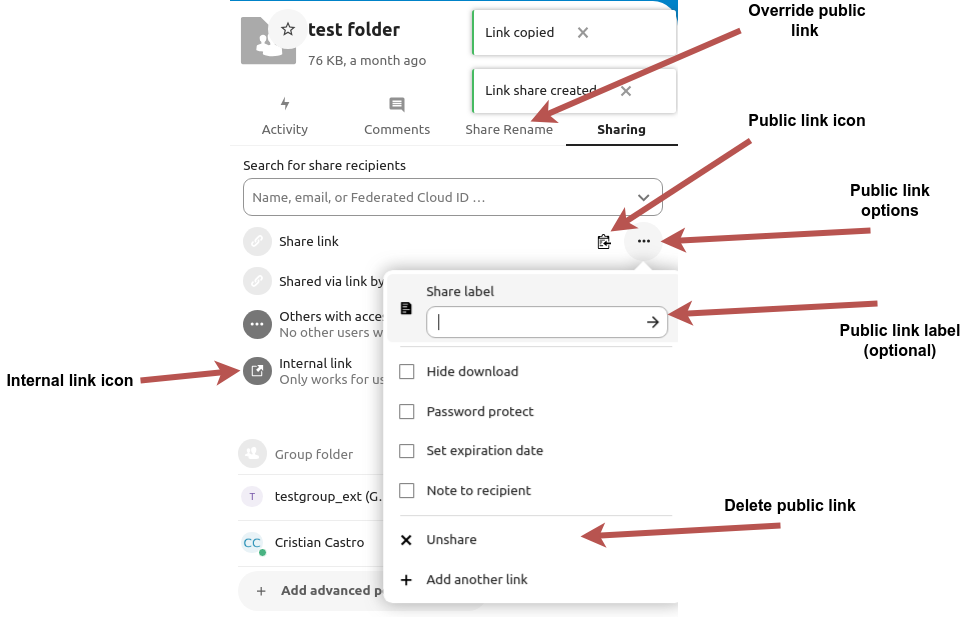
The sharing panel in B2DROP provides access to different link types and their configurations:
🌍 Public Links (External)
These links can be shared with people outside of B2DROP.
Key Features:
- Public link icon shows the item is shared externally.
- Three-dot menu lets you configure advanced options.
- You can assign a custom label to identify the link.
- Override an existing public link with a new one.
- Unshare the file or folder to delete the public link.
🔒 Public Link Settings (Recommended)
When creating a public link, you can:
- 🚫 Hide download — disable file downloading
- 🔐 Password protect — require a password to access
- ⏳ Set expiration date — auto-disable after a chosen date
- 💬 Note to recipient — add a message to provide context
- ➕ Add another link — create multiple links for the same item
🧑💼 Internal Links
Internal links are ideal for secure sharing within the B2DROP platform.
- ✅ Only accessible to B2DROP users with the right permissions
- 🛠️ If OnlyOffice is enabled, users can collaboratively edit shared documents
🧠 Best practice:
Use internal links whenever possible to maintain control and traceability of your shared content.